> ## Documentation Index
> Fetch the complete documentation index at: https://rive-android-hoist-worker.mintlify.site/llms.txt
> Use this file to discover all available pages before exploring further.
# Edit Vertices
> No matter the type of vector you create, you can edit the vertices by changing their position or handles in both design and animate mode.
export const VideoEmbed = ({src, maxWidth}) => {
return
;
};
export const YouTube = ({id, timestamp}) => {
const videoSrc = timestamp ? `https://www.youtube.com/embed/${id}?start=${timestamp}` : `https://www.youtube.com/embed/${id}`;
return ;
};
## Edit vertices mode
To enter Edit Vertices mode, either select the shape and hit enter twice or select a path and hit enter once.
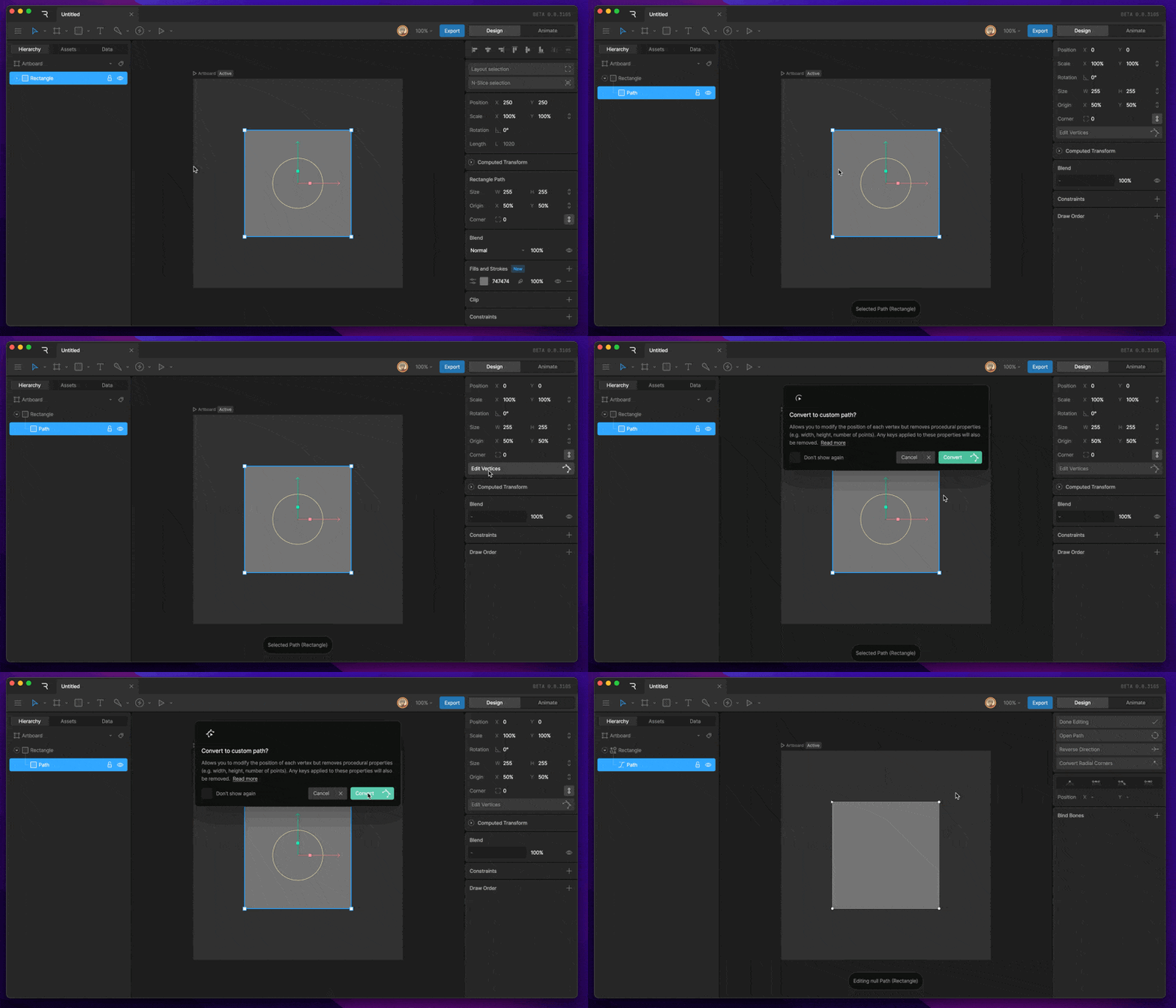 After activating Edit Vertices mode, you can select any vertex, reposition it, and edit the bezier handles.
Use [Deep Select](/editor/interface-overview/selection-and-navigation#deep-select) to select a specific path inside nested groups on the stage.
### Path options
Each path in Edit Vertices mode has a set of path options at the top of the Inspector.
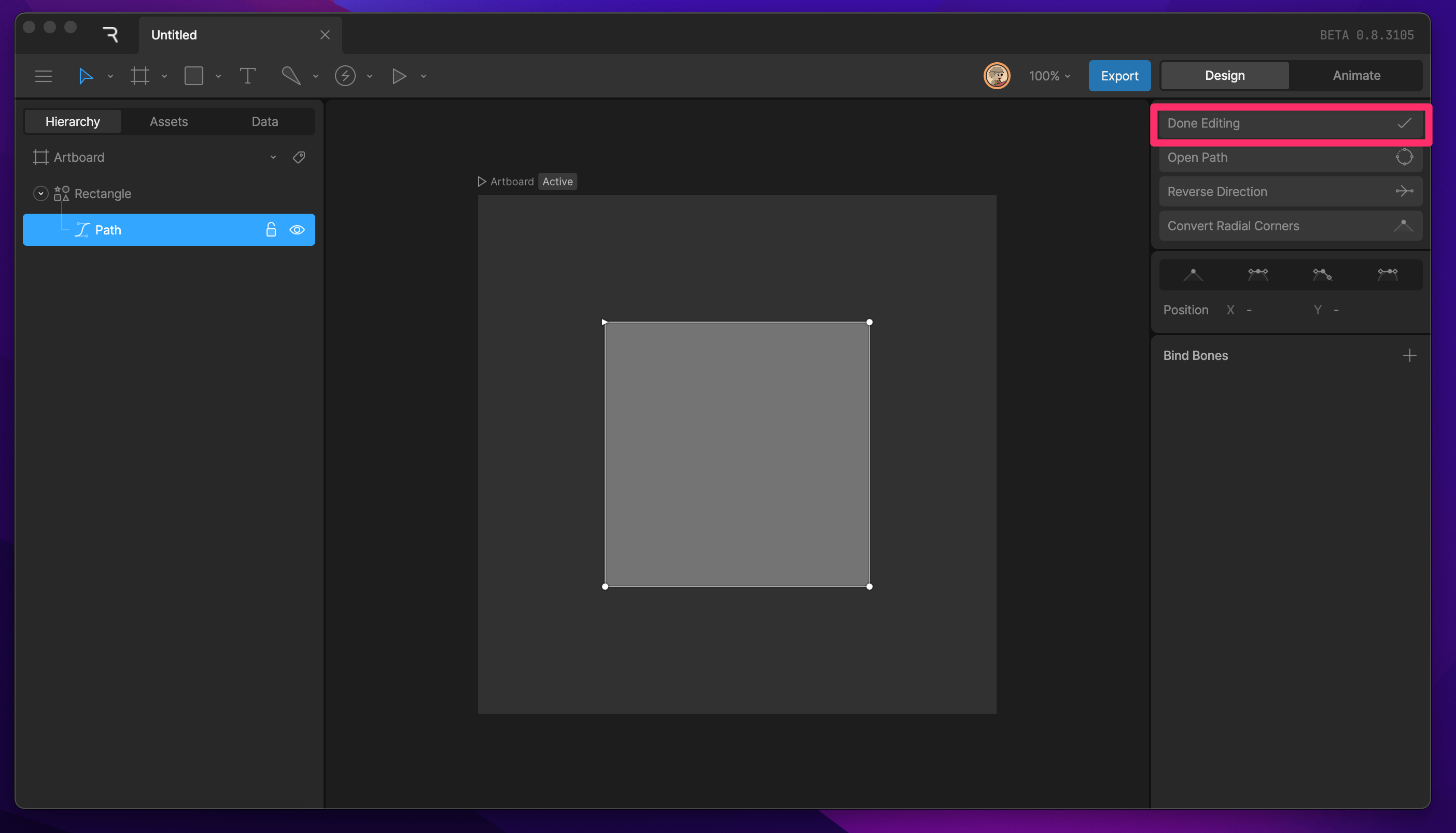
#### Done Editing Button
The Done Editing button can be used to exit Edit Vertices Mode.
After activating Edit Vertices mode, you can select any vertex, reposition it, and edit the bezier handles.
Use [Deep Select](/editor/interface-overview/selection-and-navigation#deep-select) to select a specific path inside nested groups on the stage.
### Path options
Each path in Edit Vertices mode has a set of path options at the top of the Inspector.
#### Done Editing Button
The Done Editing button can be used to exit Edit Vertices Mode.
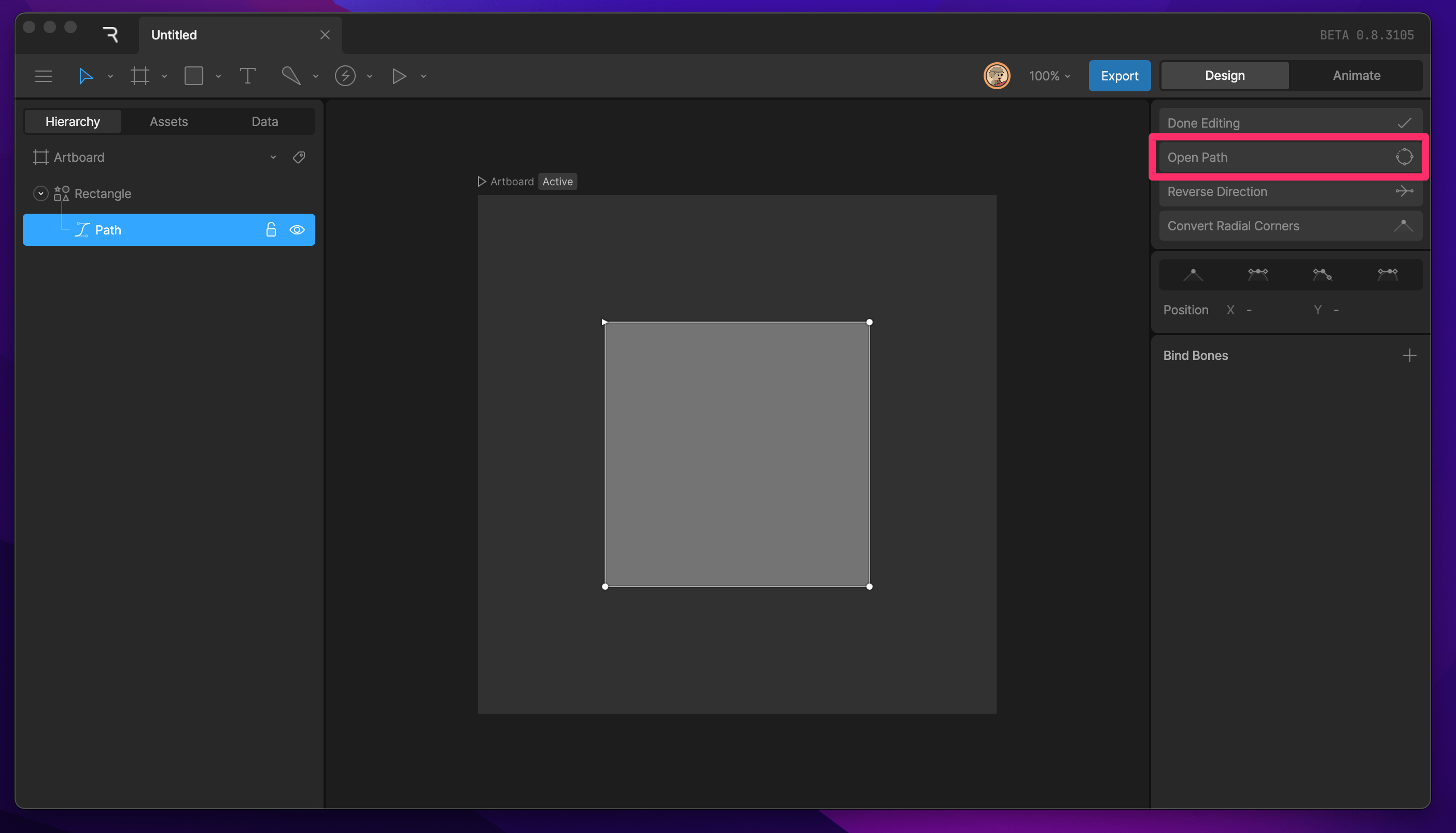
 #### Open Path
The Open Path button will disconnect the last vertex from the first vertex.
#### Open Path
The Open Path button will disconnect the last vertex from the first vertex.
 #### Reverse Direction
The Reverse Direction button can be used to reverse the direction of the path. Depending on the Fill-Rule, this can eliminate holes in our shape by changing the mathematical value of the selected path.
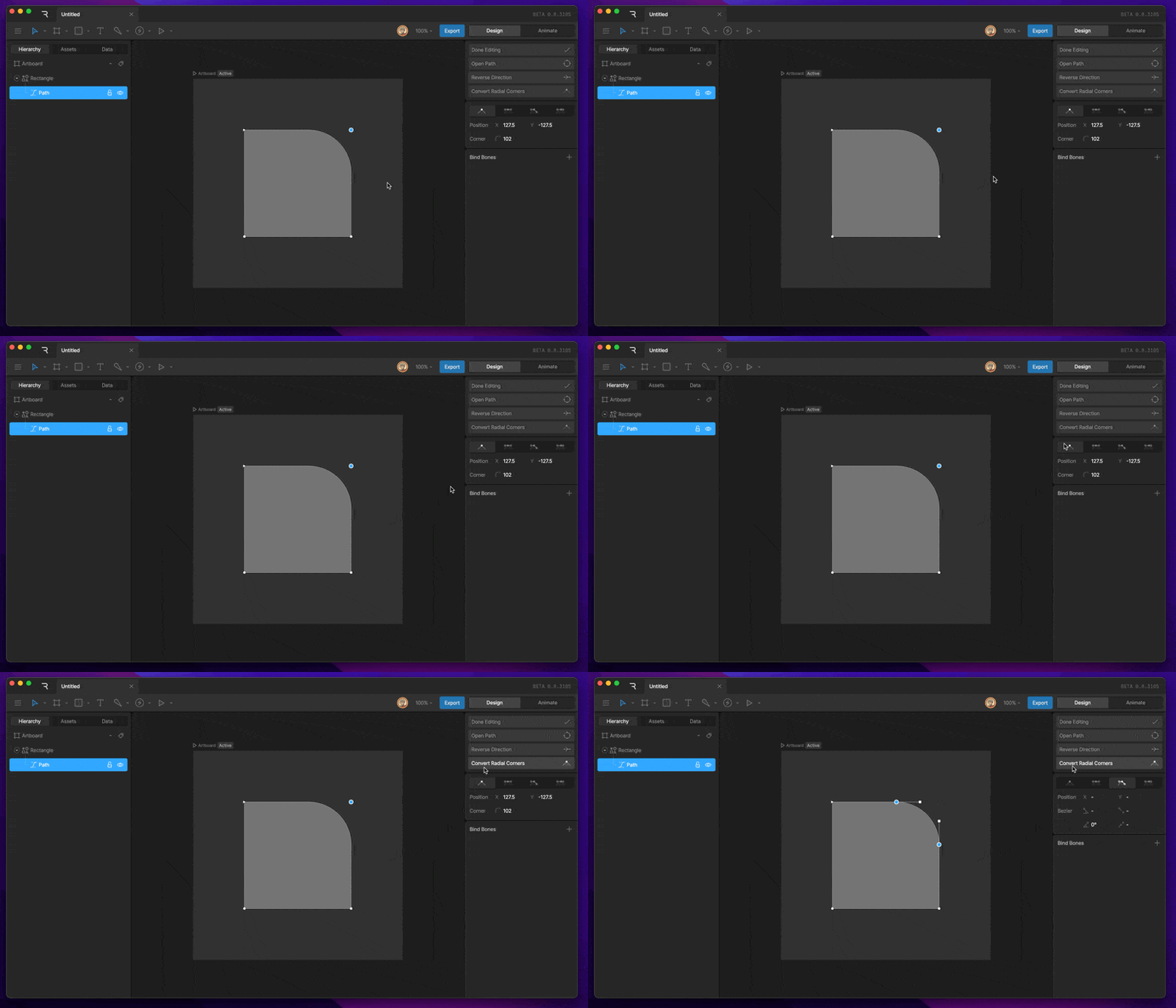
#### Convert Radial Corners
Straight vertices with a corner radius will deform when the scale transform is applied to the shape or path layer. You can convert radial corners from a procedural property to a defined set of vertices. This process will eliminate deformation of the corner.
#### Reverse Direction
The Reverse Direction button can be used to reverse the direction of the path. Depending on the Fill-Rule, this can eliminate holes in our shape by changing the mathematical value of the selected path.
#### Convert Radial Corners
Straight vertices with a corner radius will deform when the scale transform is applied to the shape or path layer. You can convert radial corners from a procedural property to a defined set of vertices. This process will eliminate deformation of the corner.
 #### Simplify
Use **Simplify** to reduce the number of vertices in a path while preserving its overall shape.
* **Tolerance** controls how far the simplified path can deviate from the original path. Higher values allow greater changes and can remove more vertices.
* **Corner Angle** controls which angles are preserved as corners.
* **Straight Lines** removes curves from the simplified path, connecting the remaining vertices with straight lines.
The preview shows the number of vertices before and after simplification. Select **Simplify Path** to apply the changes.
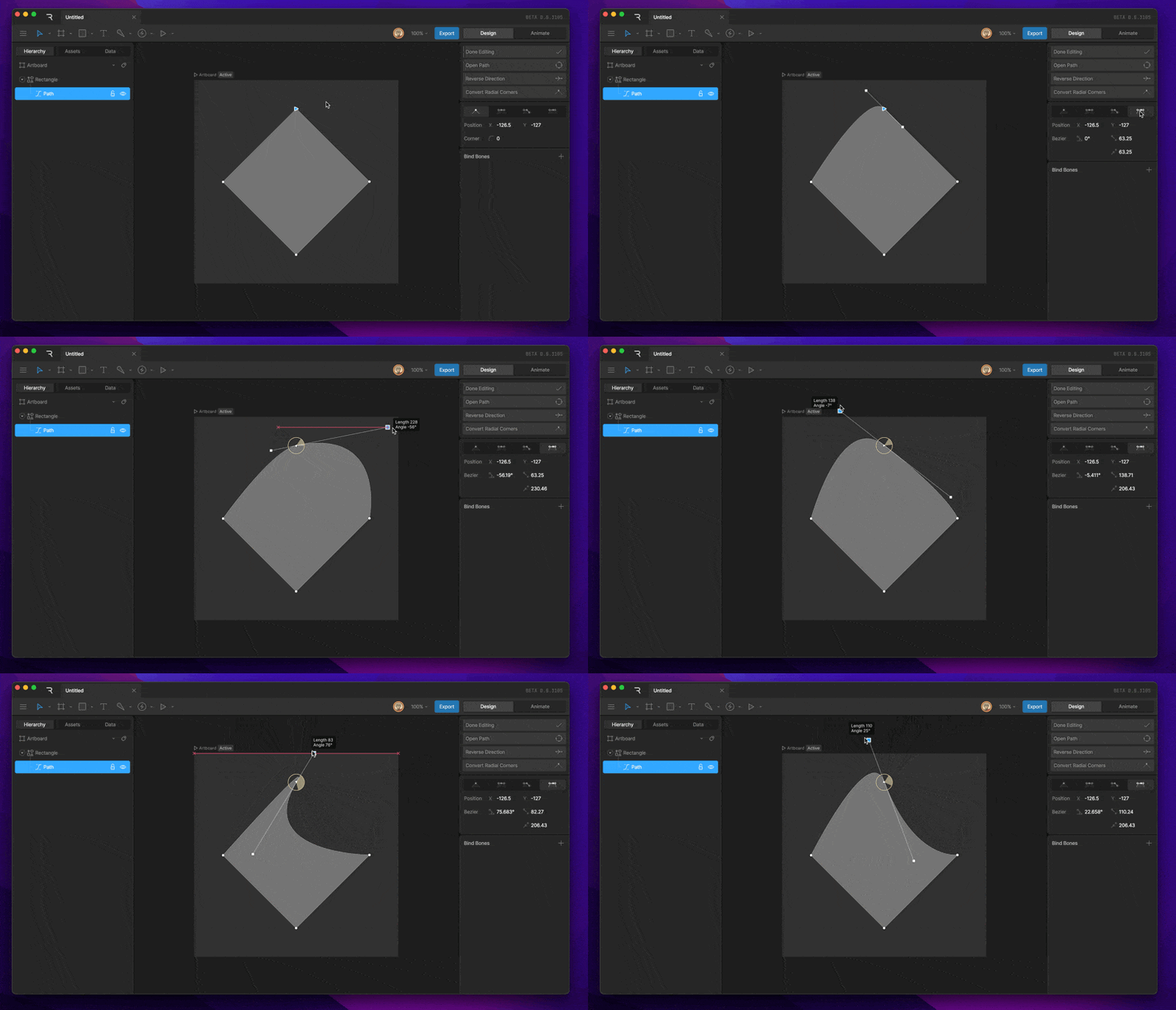
## Bezier handles
### Straight
The default handles are set to straight, which creates straight edges between vertices.
#### Simplify
Use **Simplify** to reduce the number of vertices in a path while preserving its overall shape.
* **Tolerance** controls how far the simplified path can deviate from the original path. Higher values allow greater changes and can remove more vertices.
* **Corner Angle** controls which angles are preserved as corners.
* **Straight Lines** removes curves from the simplified path, connecting the remaining vertices with straight lines.
The preview shows the number of vertices before and after simplification. Select **Simplify Path** to apply the changes.
## Bezier handles
### Straight
The default handles are set to straight, which creates straight edges between vertices.
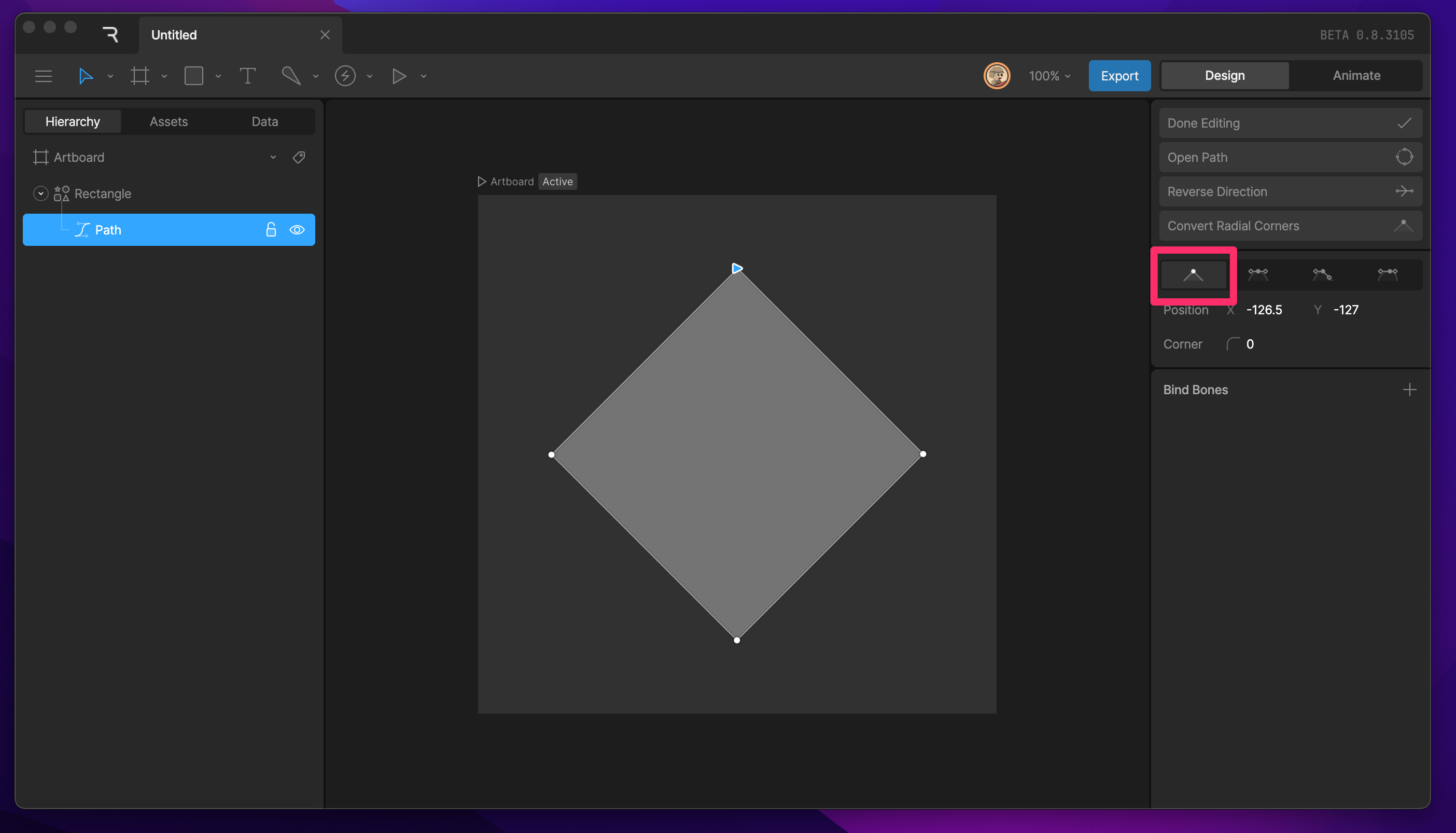 ### Corner Radius
The Corner Radius property allows you to round straight corners. This property only appears on vertices that are set to straight.
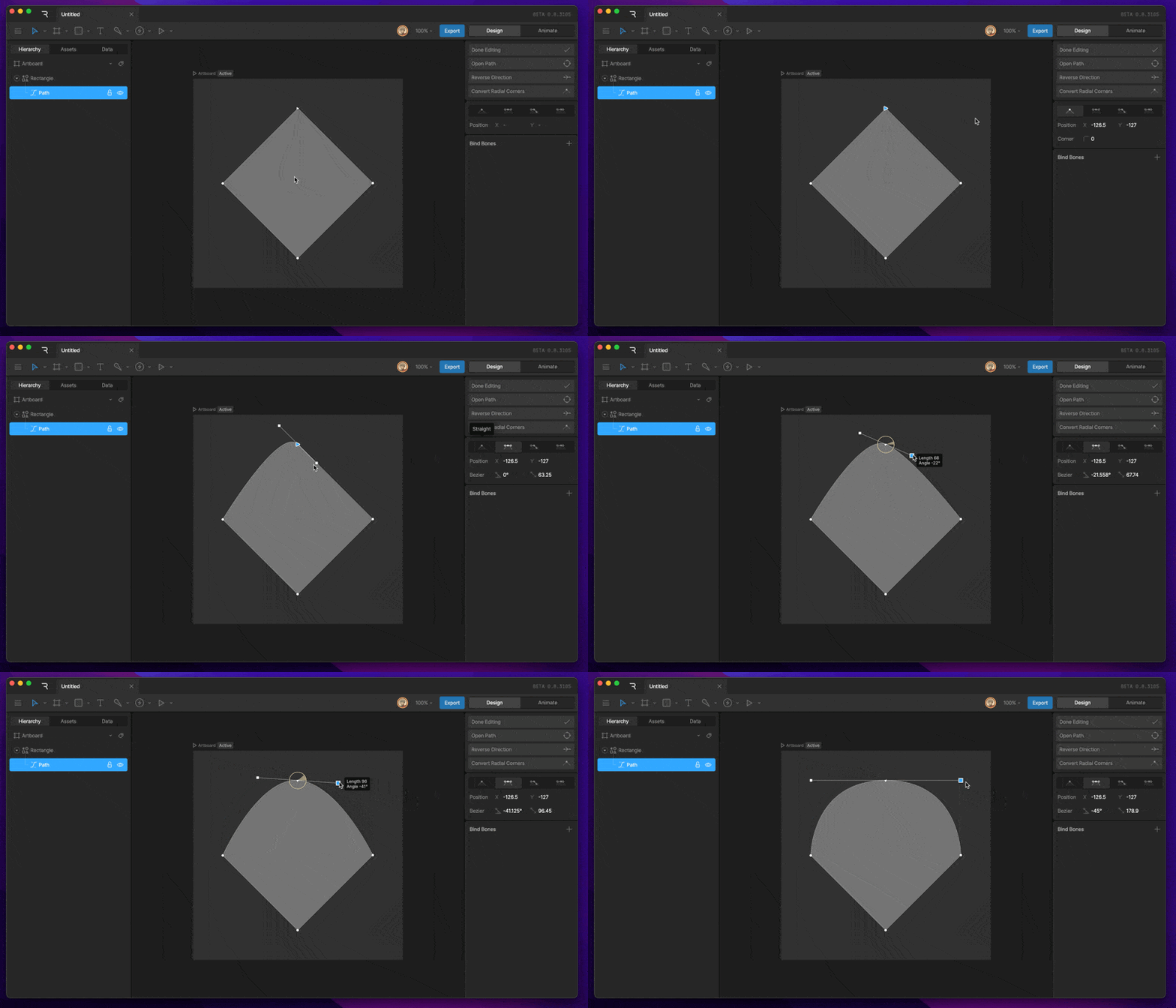
### Mirrored
Mirrored is the default handle when you create a vertex by clicking and dragging. These handles always keep the same rotation and length.
### Corner Radius
The Corner Radius property allows you to round straight corners. This property only appears on vertices that are set to straight.
### Mirrored
Mirrored is the default handle when you create a vertex by clicking and dragging. These handles always keep the same rotation and length.
 ### Detached
Detached handles allow each handle to have its own rotation and length.
### Detached
Detached handles allow each handle to have its own rotation and length.
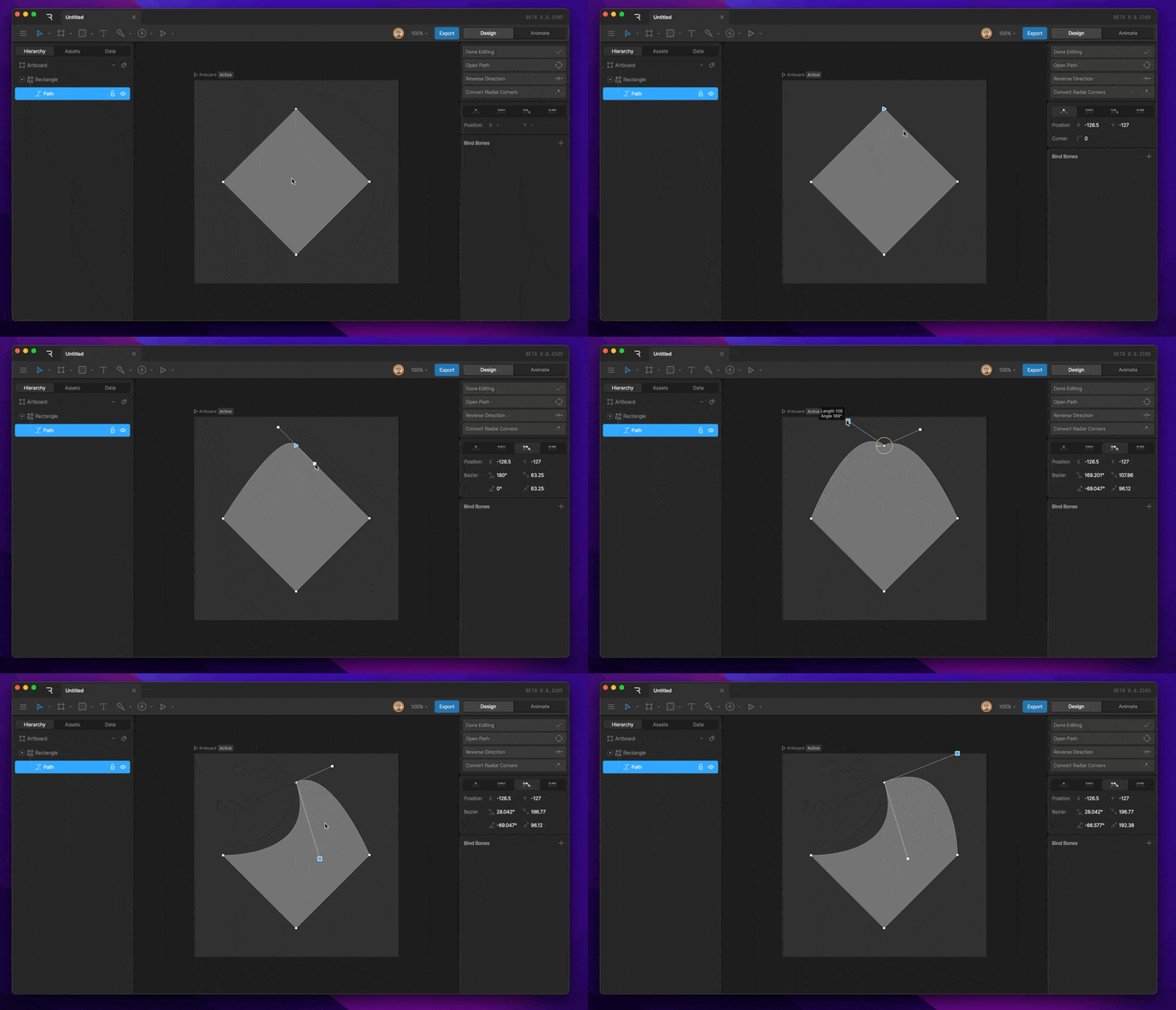 ### Asymmetric
Asymmetric handles share the same rotation but can have lengths independently of each other.
### Asymmetric
Asymmetric handles share the same rotation but can have lengths independently of each other.